Revolutionizing class admin at CYCU, one less click at a time
I got tired of digging through iLearning for course updates, so I built an MCP server that lets ChatGPT and Claude do the digging for me.
I just want to know what I need to do for class.
That sounds like a pretty reasonable thing to ask a university’s learning platform. Somehow, it turns into opening a course, scrolling through a pile of files, checking a discussion forum, and opening a PDF because the answer might be in there.
Do that for every course. Then do it again next week.
I got tired of it, so I made ilearning-mcp. It lets me ask ChatGPT or Claude about my courses and have it look through iLearning for me. The title is a little dramatic. Mostly, I wanted fewer tabs open.
Welcome to iLearning 2.0
At Chung Yuan Christian University, we use iLearning 2.0, CYCU’s customized Moodle installation. Teachers put course materials, announcements, assignments, and grades there. Students sign in with their university Microsoft 365 accounts.
The information is there. Finding the bits that matter is the annoying part.
Take my Linear Algebra course. There are exam announcements in forums near the top. The grading rules and course introduction are available as a PPT and a PDF under Ch0. Further down, lecture slides sit alongside recordings with names like 2026-10-15 14-10-08. There are past exam papers and makeup exam question banks in Word files, too.
And the section marked as the current week? Empty. The materials are organized under chapters elsewhere on the page.
None of these things is impossible to navigate. Together, they make a simple question like “what’s going on in Linear Algebra?” into a small research task. I have to work out which files matter, whether an announcement is still relevant, and whether a date is written inside a document rather than entered in the calendar.
Honestly, this sucks. I want to spend that effort understanding linear algebra.
Someone already made a better app
I’m hardly the first student to get annoyed by this. iCYCU is an unofficial student-built app that brings iLearning and iTouch together. It includes course browsing, assignments, announcements, grades, and upcoming deadlines.
That’s useful, and I don’t want to pretend it only shows a timetable. But the part I wanted help with was the reading. A better way to browse course materials still leaves me opening them and figuring out what they mean for this week.
If the answer is spread across an announcement, a course outline, and an assignment page, I still have to put it together myself.
So: let the AI do that part.
Giving it somewhere to look
ChatGPT can’t know what’s in my private course just because I ask nicely. It needs access to the actual information.
That’s where MCP comes in. The Model Context Protocol gives an AI client a way to discover and call tools. My server exposes things like list_courses, get_course_contents, list_assignments, and read_file. The client can find the right course, inspect it, read the relevant files, and use the results to answer me.
For a course update, that might mean finding Linear Algebra, checking its assignments and calendar events, then reading the announcements and course outline. I don’t have to collect those pages and paste them into the chat first.
The server doesn’t run a language model. It fetches the information; the model in ChatGPT or Claude decides what to look at and how to explain it.
Moodle already has an API
Under the interface, iLearning has Moodle’s mobile web service enabled. That gave me a much better starting point than automating clicks through every course page.
I wrote the backend in Rust. There are two main pieces: a Moodle library that talks to iLearning, and an Axum server that handles MCP, authentication, and the dashboard API. The MCP endpoint uses rmcp over Streamable HTTP. A React dashboard lets students link their account, connect clients, and inspect tool calls, with Postgres storing the account and session data.
Most tools wrap existing Moodle operations. get_course_contents, for example, calls core_course_get_contents. The server keeps the course sections, activity IDs, links, and files that an agent needs for follow-up calls, and trims away some of the noise.
There are a few very Moodle details along the way. Nested arguments become form fields like courseids[0]. An API error can arrive with HTTP status 200, so checking the status code alone isn’t enough; the response body can still contain an exception.
Files needed their own handling. A link to a PDF doesn’t help much if the client can’t authenticate to download it. read_file downloads the file using the student’s iLearning token and extracts text from PDFs, DOCX, PPTX, XLSX, and supported text formats. For formats it can’t extract, including old .doc and .ppt files, it can return a download link that expires after an hour. The link doesn’t expose the Moodle token.
That matters for this course: quite a lot of the useful information lives inside attachments.
The login was the awkward bit
There are two separate connections to deal with: linking a student’s iLearning account to my server, and allowing an AI client to use that link.
For the first one, CYCU uses Microsoft 365 SSO. The usual Moodle username-and-password token endpoint wasn’t useful here. I used Moodle’s mobile-app login flow instead.
The dashboard opens iLearning’s mobile launch page. After signing in with Microsoft, the student copies the “click here to launch the app” link and pastes it back into the dashboard. That link contains the mobile credentials. My server checks that it belongs to the login attempt, verifies the account with iLearning, and stores the tokens encrypted with AES-256-GCM.
Yes, copying a link back into a website is awkward. It’s the least elegant part of the setup. At least the Microsoft password stays in Microsoft’s sign-in flow, and the mobile token stays out of the conversation.
Then there’s the AI client’s connection. I reused the OAuth authorization-server code from my Telegram MCP project. It supports discovery metadata, dynamic client registration, client ID metadata documents, and authorization code flow with PKCE. PKCE ties the code exchange to the client that started the login.
In practice, the client opens a consent page, the student approves it, and the client gets credentials for my MCP server. The server uses that authorization to find the student’s linked iLearning account. ChatGPT doesn’t need the student’s Moodle token.
Each connected client has a session that can be disconnected from the dashboard. There’s also an activity log so I can see which tools were called and whether they succeeded.
Token renewal has an irritating catch: iLearning only permits one web login at a time. Ordinary API calls don’t disturb the browser session, but the web login used during renewal can sign the student out of iLearning. The server attempts renewal around a known expiry rather than doing that on every request. If renewal isn’t possible, it asks the student to link the account again.
One detail worth being clear about: the server also has write tools, including assignment submission and forum replies. They carry MCP annotations describing their effects, but confirmation happens in the client. The server currently doesn’t enforce separate read-only permissions for a connected session.
Connecting an AI client
The remote endpoint is:
https://ilearning-mcp.nath.tw/mcpStart by linking an account through the dashboard. After that, the setup depends on the client.
For ChatGPT, add a custom MCP app with developer mode enabled, enter the endpoint, choose OAuth, and complete the sign-in and consent flow. Enable the app for the conversation. The available settings depend on the account and workspace; OpenAI maintains the developer mode instructions.
For Claude, add a custom connector in its connector settings and enter the same endpoint. Use its published OAuth identity or automatic registration, then connect and approve the request. The server supports both, so there’s no client secret to copy by hand. Anthropic’s connector guide covers the current UI.
For Claude Code, add the HTTP server, then run /mcp inside Claude Code to authenticate:
claude mcp add --transport http ilearning https://ilearning-mcp.nath.tw/mcpOther clients need support for remote MCP over Streamable HTTP and the server’s OAuth flow. Having “MCP support” somewhere in a feature list doesn’t necessarily mean the whole connection will work.
“What’s going on in Linear Algebra?”
Here’s a real ChatGPT conversation from October 22, 2026. I asked in Traditional Chinese, since that’s what I normally use for my courses:
幫我看一下線性代數最近有什麼要注意的
Roughly: “Can you check if there’s anything I should pay attention to in Linear Algebra?” That’s the whole prompt.
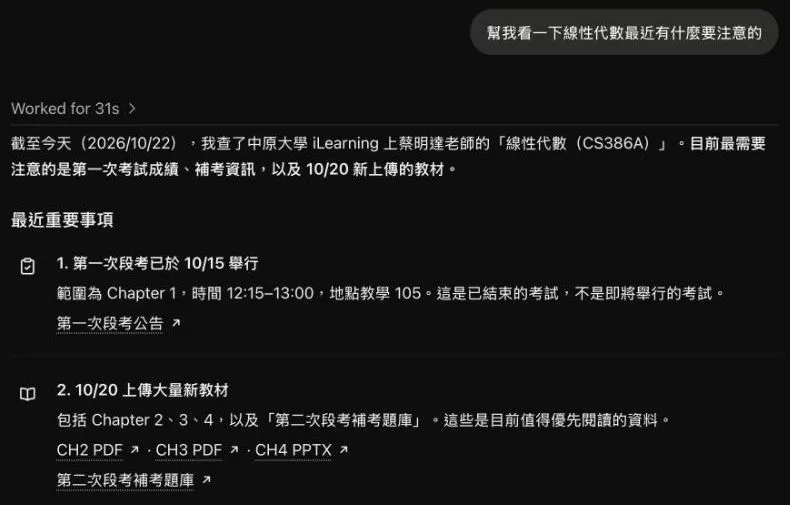
ChatGPT found the right course, pointed out that the first exam had already happened, and highlighted the Chapter 2, 3, and 4 materials uploaded on October 20. It included links to the slides and the second exam’s makeup question bank. I hadn’t told it the course ID, named any files, or asked it to follow a checklist.
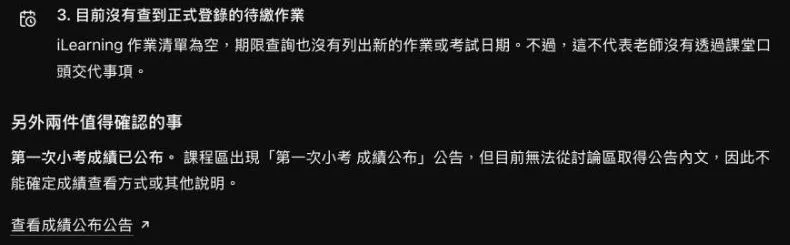
It also found a quiz results announcement, but couldn’t retrieve its body. The assignment lookup came back empty, and the answer made the useful distinction that this doesn’t rule out work assigned verbally in class.
These screenshots are excerpts of the actual response, cropped to the conversation. There’s still a reason to keep the source links: when it can’t read an announcement, I need to check it myself. A confident answer with a made-up exam date would be worse than all the clicking.
But being able to ask one question and get the relevant course information back is already useful to me. Next I can ask it to explain something in the slides, or help me work through the material it just found.
I still have to learn linear algebra. At least finding the course outline doesn’t have to be part of the homework.